PDF Software Guide
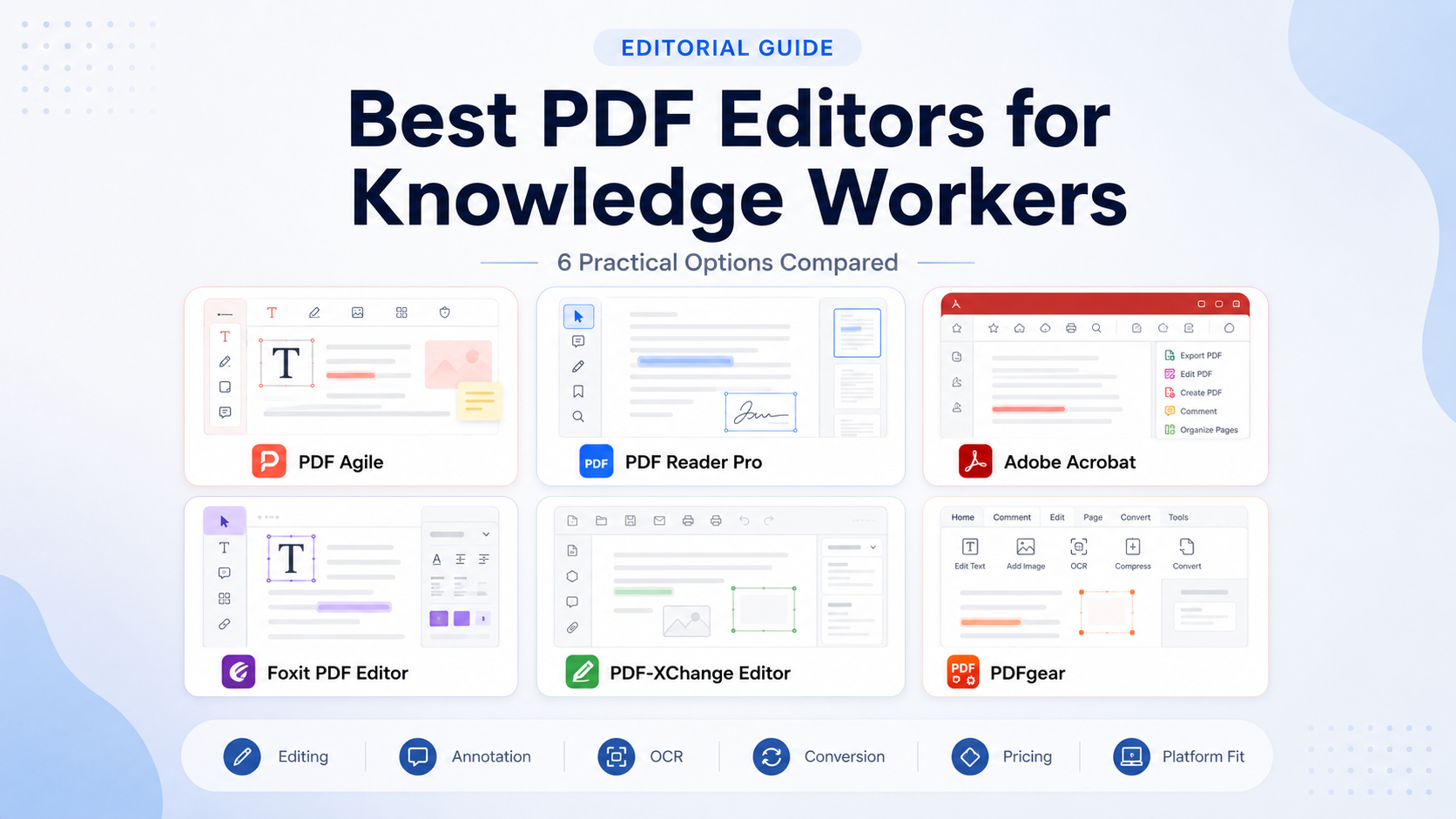
Best PDF Editors for Knowledge Workers: 6 Practical Options Compared
The best PDF editor is not necessarily the product with the longest feature list. It is the one that handles your documents reliably, fits your devices and provides the editing, annotation, conversion or OCR tools you actually use.
Quick Recommendations
Which PDF editor should you choose?
Start with the workflow you actually need. These are the clearest starting points in the current shortlist.
Best PDF editor by priority
Different products win for different reasons. These are the most useful distinctions for narrowing the shortlist quickly.
Strong fit for established business processes, forms, signatures and document control.
Relevant for Windows users who want a permanent-access option after testing real files.
Good free annotation result in Northryn testing plus broad device coverage.
Professional editing, OCR, security and perpetual-license options.
Feature-rich Windows software with perpetual licensing and many usable free functions.
Currently positioned as a free editor with no premium plan or in-app purchase requirement.
PDF editor comparison
This table focuses on durable workflow differences rather than temporary promotional prices.
| PDF editor | Best for | Platforms | Free access | OCR | Pricing model |
|---|---|---|---|---|---|
| PDF Agile | Windows editing and document preparation | Windows desktop | Limited free | Paid feature | Free, semi-annual, annual and lifetime |
| PDF Reader Pro | Cross-platform reading and annotation | Windows, Mac, iOS and Android | Useful free annotation | Paid workflow | Annual and permanent options |
| Adobe Acrobat | Established professional and organizational workflows | Desktop, mobile and web | Free Reader | Acrobat Pro | Subscription |
| Foxit PDF Editor | Advanced users seeking an Acrobat alternative | Windows, macOS and web; mobile in higher-tier offering | Free trial | Paid editor | Subscription and perpetual options |
| PDF-XChange Editor | Feature-rich Windows use | Windows | Many free functions | Tier-dependent | Perpetual licence + optional maintenance |
| PDFgear | Casual editing, conversion and annotation | Desktop, mobile and browser-based tools | Free | Supported workflows | Free at time of review |
How we evaluated these PDF editors
A useful PDF editor should reduce friction without creating avoidable problems with formatting, device access, billing or document control.
Can you reliably change existing text, images and document structure?
How easily can you highlight, comment and preserve review context?
Does exported content preserve the structure you actually need?
Can scanned documents become usable without damaging reading order?
Does the licence cover the devices and operating systems in your workflow?
Does the subscription, perpetual or free model make sense for your frequency of use?
The six PDF editors compared
The first two products include Northryn hands-on testing. The remaining recommendations use official product information plus editorial workflow analysis.
Option 1 · Hands-on tested
PDF Agile
PDF Agile combines editing, conversion, annotation, page organization, OCR, signatures and document protection in a Windows desktop toolkit.
Why consider it
- Familiar desktop interface
- Editing, annotation and page organization in one application
- Semi-annual, annual and lifetime options
- Useful for preparing PDFs before AI-assisted review
Important limitations
- Saving edited text required Premium in Northryn’s test
- Free Word conversion was limited to two pages
- The tested table lost columns, structure and visual formatting
- OCR could not be tested without Premium
Option 2 · Hands-on tested
PDF Reader Pro
PDF Reader Pro covers reading, annotation, editing, conversion, OCR, signing and document organization across desktop and mobile platforms. Its free annotation workflow was one of the strongest findings in Northryn’s testing.
Why consider it
- Windows, Mac, iOS and Android support
- Highlighting and notes worked without payment
- The annotated file saved correctly in Northryn’s test
- Annual and permanent purchasing options
Important limitations
- Editing existing text required sign-in and a paid trial
- PDF-to-Word conversion opened an upgrade screen
- Paid OCR and conversion quality remain unverified by Northryn
- The permanent licence is limited to one desktop device
Option 3 · Official information
Adobe Acrobat
Adobe Acrobat remains the broadest conventional choice for professional PDF workflows involving editing, conversion, forms, signatures, redaction and document control.
Why consider it
- Editing, export, comparison and page organization
- Forms, signatures, password protection and redaction
- Free Acrobat Reader for viewing and comments
- Strong organizational familiarity
Important limitations
- Advanced editing requires Acrobat rather than free Reader
- Subscription cost may be excessive for occasional use
- Plan structure should be checked before purchase
- Northryn has not hands-on tested Acrobat for this guide
Option 4 · Official information
Foxit PDF Editor
Foxit PDF Editor provides professional editing, conversion, OCR, forms, security and document-management features, with both subscription and perpetual purchasing options.
Why consider it
- Advanced PDF editing and conversion
- OCR, forms and document security
- Windows, macOS and web support
- Perpetual licence available alongside subscriptions
Important limitations
- Feature breadth may be excessive for simple PDF tasks
- Subscription and perpetual options require comparison
- Higher-tier features differ between plans
- Northryn has not hands-on tested Foxit for this guide
Option 5 · Official information
PDF-XChange Editor
PDF-XChange Editor is a Windows-focused PDF application with viewing, annotation, editing and document tools, plus a perpetual licensing model.
Why consider it
- Windows-focused and feature-rich
- Many functions can be used before purchasing
- Perpetual lifetime licence
- Optional maintenance rather than forced subscription
Important limitations
- Windows only
- Some unlicensed functions may add watermarks
- Maintenance terms deserve attention
- Northryn has not hands-on tested it for this guide
Option 6 · Official information
PDFgear
PDFgear currently offers free desktop and online PDF tools for editing, annotation, page organization, conversion and other everyday document tasks.
Why consider it
- Currently free with no premium plan
- Desktop and browser-based options
- Annotation, editing and page management
- Good entry point for occasional users
Important limitations
- Long-term product strategy may change
- Complex conversion quality should still be tested
- Not automatically suitable for regulated workflows
- Northryn has not hands-on tested it for this guide
Best PDF editor by workflow
Match the tool to the work you actually do rather than choosing by total feature count.
Best starting point for forms, signatures, redaction and organizational standardization.
Good fit when lifetime access and desktop editing matter.
Strong fit for documents moving between desktop and mobile devices.
Relevant when you want a full professional suite without defaulting to Acrobat.
Strong choice for feature-rich Windows use and perpetual licensing.
Best starting point when cost matters and the workflow is not mission-critical.
Free versus paid PDF editors
Free software is often enough for lower-risk reading and annotation. Paid software becomes more useful when advanced document manipulation becomes routine.
Free may be enough if you mainly need
- Reading and searching PDFs
- Highlighting and comments
- Basic page organization
- Occasional conversion
- Low-risk personal document work
Paid becomes more useful when you need
- Editing existing text and images
- Reliable OCR
- Batch conversion
- Redaction, forms or advanced security
- Professional or repeatable document workflows
How to choose the right PDF editor
Use these five checks to narrow the shortlist before comparing individual features or plans.
Editing or annotation?
If you only highlight and comment, a free reader may be enough. Changing existing text usually requires more.
Which devices matter?
Cross-platform access only adds value if your workflow genuinely moves between devices.
How important is OCR?
Test representative scans in your usual languages and layouts rather than relying on the feature label.
Subscription or permanent access?
Permanent licensing can reduce recurring cost, but device limits and upgrade terms still matter.
Are the documents sensitive?
Check storage, processing, retention and AI-data practices before using confidential or regulated files.
Frequently asked questions
What is the best PDF editor for knowledge workers?
Adobe Acrobat is the broadest choice for established professional workflows. PDF Agile is a practical Windows option with lifetime access, while PDF Reader Pro is better suited to cross-platform annotation. The best choice depends on the documents, devices and paid features you actually need.
Is a free PDF editor enough for professional use?
It can be enough for reading, highlighting, comments and some page operations. Editing existing content, advanced OCR, batch conversion, redaction and security often push the workflow toward paid software.
Which PDF editor offers a lifetime licence?
PDF Agile currently offers a Lifetime plan. PDF Reader Pro offers a Permanent desktop option, while PDF-XChange and Foxit also offer perpetual licence options. Check device limits, maintenance and upgrade terms before purchasing.
Is PDF Agile better than PDF Reader Pro?
PDF Agile is more attractive for Windows users considering lifetime access. PDF Reader Pro is stronger for cross-platform use and provided a good free annotation experience in Northryn’s testing. Read the full comparison →
Is PDF Reader Pro better than Adobe Acrobat?
PDF Reader Pro is more attractive for individuals who value cross-platform annotation and simpler personal licensing. Acrobat is better suited to complex professional workflows involving forms, redaction, signatures and established organizational processes. Read the comparison →
What is the best Adobe Acrobat alternative?
Foxit is the closest full-featured alternative in this list. PDF-XChange is especially relevant for Windows users, while PDF Agile may suit people who prefer a simpler toolkit with lifetime access.
Can PDF editors summarize documents with AI?
Some PDF products include AI-assisted features, but generated output should still be checked against the original document before important claims are used.
Are online PDF editors safe for confidential documents?
Do not assume every online editor is appropriate for confidential material. Review privacy, processing and retention practices before uploading sensitive files, and use approved local or enterprise tools where required.
Final Recommendation
Choose for the workflow, not the feature count
Adobe Acrobat remains the safest conventional choice for established professional workflows. PDF Agile is especially relevant for Windows users considering lifetime access, while PDF Reader Pro is stronger for cross-platform annotation.
Foxit is a strong full-featured Acrobat alternative, PDF-XChange is compelling for Windows-focused users who prefer perpetual licensing, and PDFgear is the easiest free starting point for occasional PDF work.
Before purchasing, test the documents that create the most risk in your workflow: scanned pages, complex tables, forms, annotations and Word conversions.