
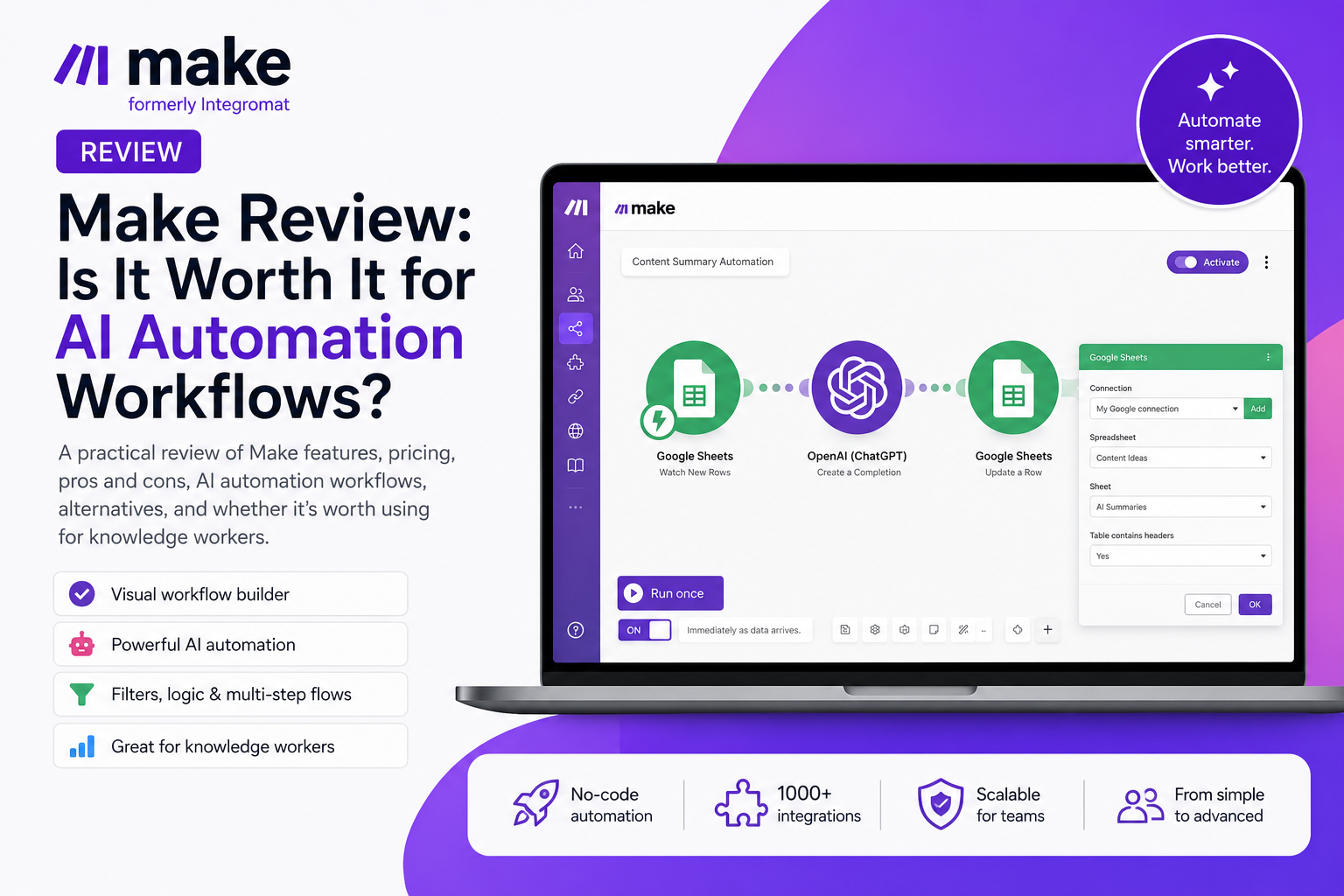
Hands-on review
Make Review: Is It Worth It for AI Automation Workflows?
Make is a visual automation platform for connecting apps, spreadsheets and AI modules into repeatable workflows. This review helps knowledge workers and small teams decide whether Make is useful enough to add to their automation stack.
Quick verdict
Make is worth trying if you want visual, flexible automation across apps, spreadsheets and AI workflows.
Make is worth trying for knowledge workers and small teams that need visual, multi-step automation across apps, spreadsheets and AI tools. In Northryn’s hands-on test, Google Sheets connectivity, field mapping, filters, AI output, scheduling and execution history were straightforward to use. The main trade-off is that Make becomes more technical as workflows add routers, webhooks, APIs, error handling and higher usage.
Best for
- Knowledge workers
- Operations and process improvement
- Content and editorial teams
- Consultants and solo operators
- Small teams building practical AI workflows
Not ideal for
- Users who only need one very simple automation
- Teams that require full developer control
- Users unwilling to monitor credits and workflow usage
- Business-critical workflows without testing or oversight
Main strength
Make’s visual scenario builder makes it easier to see, inspect and control how data moves between apps and workflow steps.
Main limitation
Basic workflows are approachable, but complexity increases with routers, webhooks, branches, custom APIs, errors and high-volume processes.
Make at a glance
| Area | Make |
|---|---|
| Best for | Visual workflow automation, app-to-app automation, spreadsheet workflows and AI-assisted processes. |
| Free plan | Available. Useful for testing simple scenarios before moving to a paid plan. |
| Core use case | Connecting apps, moving data, applying filters, generating AI output and updating systems automatically. |
| Learning curve | Low for basic scenarios; moderate to high when workflows include routers, webhooks, APIs or complex logic. |
| AI features | AI modules can be connected to workflows. In our test, Make generated a summary from a Google Sheets topic and wrote it back to the sheet. |
| Integrations | Works with many common productivity, business, data and AI tools. The best fit depends on the apps you already use. |
| Pricing model | Plan-based with usage measured in credits. Operations are the activities performed by modules; credits are the usage unit consumed by those activities and some other features. |
| Main limitation | Workflows need monitoring as scenario frequency, credits, failures and edge cases become more important. |
What is Make?
Make is a no-code automation platform that lets you build workflows between different apps and services.
In Make, workflows are called scenarios. A scenario usually starts with a trigger, such as a new spreadsheet row, a form submission, an email, a file upload, a scheduled time or a webhook. After that, Make can run one or more actions across connected tools.
For example, a scenario could watch a Google Sheet for a new row, send the row data to an AI module, generate a short summary, write the result back into another spreadsheet column and notify someone in Slack or email.
The value of Make is not only that it connects apps. The value is that it gives you a visual way to design, inspect and control a workflow. That makes it especially relevant for knowledge work, where information often moves between spreadsheets, documents, AI tools, project management systems, inboxes, databases and content workflows.
Who is Make best for?
Make is best for people who work across several apps and want to reduce repetitive manual work. It is particularly useful when your workflow is too repetitive to keep doing by hand, but not complex enough to justify building custom software.
Knowledge workers
Make fits people who manage information across spreadsheets, documents, AI tools, email, project management systems and databases. If your work involves copying, updating, summarizing or routing information, Make can help turn repeated steps into structured workflows.
Operations and process improvement
Make is useful for automating status updates, handoffs, reporting, data cleanup, task creation and notification flows without waiting for engineering support every time a process changes.
Content teams
Content teams can use Make to automate workflows around topic lists, briefs, summaries, metadata, publishing checklists, task tracking and reporting.
Consultants and solo operators
Consultants, freelancers and solo business owners can use Make to create lightweight systems around leads, client intake, follow-ups, research notes, documents and reports.
Small teams
Make can help small teams standardize recurring processes before they are ready to invest in custom software or dedicated internal tooling.
AI workflow builders
Make is a strong fit for people who want to turn AI from a manual chat interface into a repeatable process that sends inputs, prompts and outputs between real work tools.
Who should not choose Make?
Make may not be the best choice if you only need one simple automation, if your organization requires fully developer-controlled workflows, or if you do not want to learn basic concepts such as scenarios, modules, filters, credits and execution history.
For broader context, see Northryn’s guide to the best AI tools for knowledge workers.
Key features
Visual scenario builder
What it does: Make lets you build automations by placing modules on a visual canvas and connecting them into a workflow.
Why it matters: This makes it easier to see how data moves between steps, especially when a workflow has several modules.
What we observed: Creating a new scenario was straightforward. Make suggested useful app categories and common tools such as Google Sheets, Google Drive, OneDrive, AI by Make, popular apps and built-in tools.
Limitation: The visual builder becomes more demanding when workflows include many branches, routers, webhooks or error-handling paths.
App integrations
What it does: Make connects with many common business, productivity, data and AI tools.
Why it matters: Most knowledge work happens across multiple apps. A useful automation tool needs to connect the tools where work already happens.
What we observed: Google Sheets connected smoothly. Make detected the spreadsheet, permissions were clear and the setup process did not feel confusing.
Limitation: Integration quality can vary by app, and important workflows should be tested before relying on them.
Data mapping
What it does: Make lets you map data from one module into later modules. For example, a topic from Google Sheets can be inserted into an AI prompt and the result can be written back into another column.
Why it matters: Data mapping is the difference between a basic app connection and a useful workflow.
What we observed: Mapping fields from Google Sheets was clear and intuitive in our test.
Limitation: Mapping becomes more fragile when source data is inconsistent, missing or formatted unpredictably.
Filters and conditions
What it does: Filters decide whether a workflow should continue based on a condition.
Why it matters: Real workflows usually need rules. You may only want to process rows marked “New” or send notifications when a status changes.
What we observed: We tested a filter based on a status field. The workflow continued when the condition matched and correctly stopped when it did not.
Limitation: Filters are powerful, but poorly defined conditions can silently block useful data or allow the wrong items through.
AI automation
What it does: Make can connect AI modules into broader workflows.
Why it matters: This allows AI to become part of a repeatable process instead of a manual copy-and-paste task.
What we observed: In our test, Make took a topic from Google Sheets, inserted it into a prompt, generated a short summary and wrote the output back into Google Sheets.
Limitation: AI output still needs human judgment. Make can automate the workflow, but it should not remove review from important decisions.
Execution history
What it does: Make lets you inspect scenario runs and review what happened inside each module.
Why it matters: Automation needs visibility. When something fails or behaves unexpectedly, you need to see what data moved through the workflow.
What we observed: Execution history was understandable and helped show what happened during the workflow.
Limitation: Our test did not include complex errors, failed webhooks or broken third-party API responses.
Scheduling and activation
What it does: Make scenarios can be activated and scheduled so they run automatically.
Why it matters: Building a workflow is only useful if you understand when it runs and how often it runs.
What we observed: Scheduling and activation were easy to find and understand. The scenario was activated successfully.
Limitation: Higher-frequency or more complex scheduling should be monitored because it can affect usage.
Templates
What it does: Make provides templates to help users start from existing workflow patterns.
Why it matters: Templates reduce the blank-page problem and help users see what is possible.
What we observed: AI workflow templates looked relevant and useful for knowledge workers.
Limitation: Templates should be adapted carefully. They are starting points, not finished systems.
Our practical test
For this review, we tested Make by building a small workflow using Google Sheets, a filter and an AI module. The goal was not to stress-test Make as an enterprise automation platform. The goal was to see whether a knowledge worker could build a practical workflow without writing code.
What we built
The test workflow watched a Google Sheet for a topic, checked a status field, sent the topic into an AI module, generated a short summary and wrote the result back into Google Sheets.
Scenario creation
Creating a new scenario was simple and the interface felt intuitive.
App connection
Google Sheets connected correctly and Make detected the spreadsheet.
Field mapping
Mapping spreadsheet fields into the workflow was clear.
Filters
A status-based filter worked correctly. The flow continued when the condition matched and stopped when it did not.
AI workflow
The topic from the sheet was inserted into the AI prompt. Make generated a summary and wrote it back into Google Sheets.
Execution history
The run history was understandable and helped show what happened inside the workflow.
Scheduling
Scheduling and activation were clear.
Usage visibility
The usage panel was understandable.
Templates
AI workflow templates looked relevant and useful.
Testing conclusion
For a basic AI and spreadsheet workflow, Make felt intuitive and reliable. The reasonable conclusion is that Make is approachable for practical workflows, but more advanced scenarios will require more careful design, monitoring and testing.
What we did not test
We did not test complex routers, webhooks, custom APIs, sensitive-data workflows, high-volume usage, team governance or business-critical enterprise automations.
A realistic Make workflow example
A practical Make workflow for a knowledge worker might look like this:
| Step | Workflow action | Why it matters |
|---|---|---|
| 1 | Add a new topic, request, task or idea to Google Sheets. | Keeps the input simple and structured. |
| 2 | Make detects the new row. | Starts the workflow without manual checking. |
| 3 | A filter checks whether the item is ready. | Prevents unfinished or irrelevant rows from continuing. |
| 4 | An AI module generates a short summary or classification. | Turns raw input into a usable first draft or label. |
| 5 | Make writes the result back into the spreadsheet. | Keeps the output inside the system where the work is tracked. |
| 6 | Another module sends a notification, creates a task or updates another tool. | Moves the work forward without another manual step. |
This is not a flashy workflow. That is exactly why it matters. Most useful automation is not about replacing your entire job. It is about removing small repeated steps that waste attention every week.
Make can also support research-adjacent workflows. For example, it could help move research notes, AI summaries or content inputs between tools as part of a broader AI research workflow for knowledge workers.
Pros and cons
Pros
- Visual and flexible builder: Make makes it easier to understand how a workflow is structured and how data moves between steps.
- Good for AI automation: Make can connect structured inputs, AI modules and output tools in practical workflows.
- Clear field mapping: Mapping fields between modules was straightforward in our test.
- Useful filters: Filters make workflows more selective and realistic.
- Readable execution history: Make helps users understand what happened during a workflow run.
- Relevant templates: Templates can help users get started faster, especially with AI workflows.
Cons
- Complexity can grow: More advanced scenarios with routers, webhooks and branching require more learning.
- Usage needs monitoring: Users need to understand credits, scenario frequency and workflow activity.
- Not always the simplest option: For very basic automations, Zapier may feel faster and more guided.
- Requires process clarity: Make works best when you understand the workflow you want to automate.
- Critical workflows need testing: Important automations should be monitored before being trusted.
Pricing and value
Make offers Free, Core, Pro, Teams and Enterprise plans. For a detailed explanation of plan differences, credit consumption and real usage estimates, read Northryn’s Make pricing guide. Exact prices and included features can change, so check the official pricing page before subscribing.
The key distinction is between operations and credits. An operation is an activity performed by a module to process or check data. Credits are the usage unit consumed to run those operations and other usage-based features. Most non-AI app modules use one credit per operation, while some AI and specialized features can consume credits differently.
| Plan type | Best fit | What to check before choosing |
|---|---|---|
| Free | Testing Make and building simple workflows. | Credit allowance, scheduling limits, app access and whether your scenario can run often enough. |
| Core | Users who need more capacity than Free for practical recurring workflows. | Monthly credits, scheduling requirements and whether your workflows are likely to scale. |
| Pro | Users running Make regularly who need more advanced workflow features. | Credit usage, advanced features, AI usage and scenario complexity. |
| Teams | Groups collaborating on workflows and shared automation processes. | Team roles, shared scenarios, monitoring and governance needs. |
| Enterprise | Larger organizations with advanced security, governance, scale and support requirements. | Security, admin controls, support, compliance and workflow-critical reliability. |
Start with the Free plan if you are evaluating Make for the first time. Move to a paid plan only when your real workflow needs more capacity, scheduling flexibility or advanced features.
Make alternatives
Zapier
Zapier is the most obvious Make alternative. It may be better if your workflows are simple, linear and you want the fastest guided setup.
n8n
n8n is stronger for more technical users who want deeper control, self-hosting options or a more developer-friendly workflow environment.
Pipedream
Pipedream is more developer-oriented and can be useful for users who want to combine automation with code and API-based workflows.
Microsoft Power Automate
Power Automate may fit better if your organization is deeply invested in Microsoft 365, Outlook, Teams, SharePoint and enterprise Microsoft workflows.
Relay.app
Relay.app may be better for simpler collaborative workflows, especially where human review is part of the process.
Make vs Zapier
Make and Zapier are both strong automation platforms, but they are not the same kind of experience.
| Criteria | Make | Zapier |
|---|---|---|
| Best fit | Visual workflows, multi-step logic, filters, AI workflows and users who want more control. | Simple, linear automations between popular apps with a guided setup. |
| Workflow style | Visual scenario canvas with modules and data inspection. | More linear and guided automation builder. |
| Learning curve | Approachable for basic scenarios, but deeper when workflows become complex. | Usually easier for simple first automations. |
| AI workflows | Strong fit when AI modules are part of a broader workflow. | Useful for AI automations too, but often feels more linear. |
| Best choice when | You want visual control, flexible logic and clear data flow. | You want the fastest route to a simple automation. |
Choose Zapier if your automations are simple and you value speed over flexibility. Choose Make if you want visual control, flexible logic, AI workflows, field mapping, filters and better visibility into what happens inside the automation.
For a deeper side-by-side comparison, read Make vs Zapier, where Northryn tested the same Google Sheets workflow in both platforms.
Common mistakes and limitations
Automating an unclear process
If the manual workflow is messy, automation can make the mess run faster. Clarify the process before building the scenario.
Building workflows nobody can maintain
A clever scenario is not useful if nobody understands it later. Keep naming, structure and documentation simple.
Adding AI where rules are enough
AI is useful for summarizing and classifying messy inputs, but simple rules are often better for predictable logic.
Ignoring failures and empty fields
Real data is imperfect. Important workflows should handle missing values, failed connections and unexpected formats.
Not monitoring credits or usage
Scenario frequency and module activity affect usage. Monitor credits before scaling a workflow.
Removing human review too early
AI-assisted workflows should keep human review where mistakes would matter.
Frequently asked questions
Is Make worth it?
Make is worth it if you have recurring workflows that move data between apps and you want more visual control than basic automation tools provide.
Is Make better than Zapier?
Make is often better for visual, multi-step workflows with filters, field mapping and more flexible logic. Zapier may be better for simple, linear automations that need a faster guided setup.
Is Make free?
Yes. Make has a Free plan that is useful for testing simple scenarios before deciding whether you need more credits, faster scheduling or paid-plan features.
Is Make difficult to learn?
Make is not difficult for basic workflows. In our test, creating a scenario, connecting Google Sheets, mapping fields, adding a filter and using an AI module were all intuitive. More advanced scenarios will take more learning.
Can Make automate AI workflows?
Yes. In our test, Make took a topic from Google Sheets, inserted it into an AI prompt, generated a summary and wrote the result back into the spreadsheet.
Does Make require coding?
No. Make is designed as a no-code automation platform. Some advanced workflows may benefit from technical knowledge, but basic app and AI workflows can be built without writing code.
Is Make suitable for small teams?
Yes, especially if the team has recurring workflows across spreadsheets, project tools, content systems, AI modules and communication apps.
What are the main Make alternatives?
The most relevant Make alternatives include Zapier, n8n, Pipedream, Microsoft Power Automate and Relay.app.
How does Make pricing work?
Make combines plan tiers with credit-based usage. Operations are the activities performed by modules, while credits are the usage unit consumed by those operations and certain other features.
Can Make replace Zapier?
Make can replace Zapier for some users, especially those who want more visual control and flexible workflow logic. But Zapier may remain better for users who prefer simpler linear automations.
Related guides
Continue the automation cluster with Make vs Zapier, compare Make with a more technical automation platform in Make vs n8n, explore Best AI Tools for Automation, see Northryn’s Recommended AI Tools, or compare broader productivity options in Best AI Tools for Knowledge Workers.
Final recommendation
Make is a strong choice for visual AI automation workflows, as long as you start small and monitor usage.
Make is best for knowledge workers and small teams that want visual control, multi-step workflows, AI automation, filters, templates and clear execution history. Its main trade-off is that the same flexibility that makes it powerful can also make larger scenarios harder to maintain.
If you only need one simple linear automation, Zapier may feel easier. If you want a more technical or self-hosted setup, n8n may be a better fit. But if your goal is to connect apps, spreadsheets and AI modules into practical recurring workflows, Make is worth testing.